
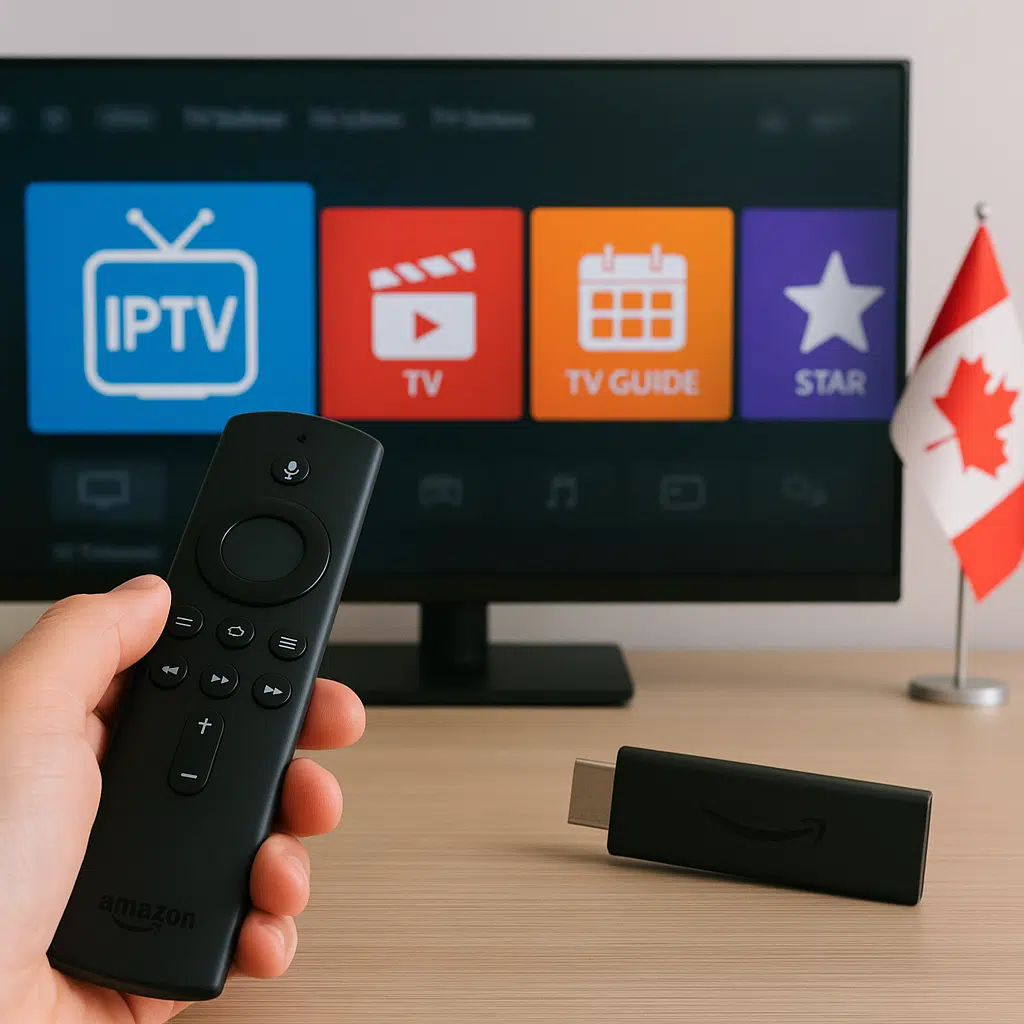
How to install IPTV on Firestick in Canada is one of the most common questions from viewers who want a simpler, more flexible way to watch live TV, sports, movies, series, and international channels at home. The good news is that the setup is usually straightforward, and Primestelly helps Canadian viewers enjoy IPTV without making the process feel technical or confusing.
If you already own an Amazon Fire TV Stick, you have one of the most popular streaming devices in Canada. It is small, affordable, easy to move between rooms, and works well with many IPTV player apps when your internet connection is stable.
A lot of viewers switch to Firestick because they want one simple device plugged into the TV instead of a cable box, satellite receiver, or complicated home setup. In most cases, once your IPTV app is installed and your subscription details are added, you can start watching within minutes.
This guide walks you through the full process in plain language. You will learn what you need before you begin, how to prepare your Firestick, how to install an IPTV player, how to add your playlist or login details, and how to avoid the most common problems Canadian viewers run into.
We will also cover internet speed, Wi-Fi placement, app choices, safety, parental controls, troubleshooting, and the difference between Firestick and Android TV boxes, so you can feel confident before pressing play.
Before You Install IPTV on Firestick in Canada
Before jumping into the setup steps, it helps to understand what IPTV actually does. IPTV means internet protocol television, which simply means TV delivered through your internet connection instead of traditional cable or satellite. If you want a beginner-friendly explanation, Primestelly has a helpful plain-English guide on what IPTV means for Canadian viewers.
On a Firestick, IPTV usually works through an IPTV player app. The app is like a media player: it does not create the channels by itself. Instead, you add the login details, M3U playlist, or Xtream Codes information from your IPTV provider, and the app organizes your live channels, video-on-demand library, TV guide, and favourites.
That distinction matters because installing an app is only half the job. You also need a reliable IPTV provider, a proper subscription, and stable home internet. A smooth IPTV experience depends on all three working together.
Here are the basic pieces involved:
- A compatible Amazon Fire TV Stick or Fire TV device
- A stable internet connection in your home
- An IPTV subscription from a trustworthy provider
- An IPTV player app installed on the Firestick
- Your login details, M3U link, or Xtream Codes
- A TV with an available HDMI port
If you are brand new to IPTV, do not worry. Firestick is popular because it keeps the experience simple. You use the Firestick remote, launch the IPTV app, choose a channel, and watch. Once set up correctly, it can feel very familiar, even for viewers who have used cable for years.
What You Need for a Smooth Firestick IPTV Setup
To install IPTV on Firestick in Canada successfully, start by checking your equipment and account details. This step may sound basic, but it prevents most of the small frustrations people face later, such as typing long links with the remote or discovering that the Wi-Fi signal is weak in the living room.
First, make sure your Firestick is powered properly. Plug it into the wall using the included power adapter when possible, rather than relying only on your TV USB port. Some TV USB ports do not provide enough steady power, which can lead to slow loading, random restarts, or freezing during longer viewing sessions.
Second, update your Firestick software. Amazon regularly improves performance, security, and app compatibility. To check for updates, go to Settings, My Fire TV, About, and then Check for Updates. Let the update finish before installing anything new.
Third, have your IPTV information ready. Depending on your provider, this may include:
- A username and password
- A server URL or portal URL
- An M3U playlist link
- An EPG or TV guide link
- Instructions for a specific IPTV player
- Support contact details if you get stuck
If your provider gives you an M3U link and you are not sure what it means, you can read this simple walkthrough on loading an M3U playlist in Canada. It explains how playlists work and why copying the exact link matters.
You should also think about your internet package. For one HD stream, many homes are fine with moderate speeds, but 4K channels, multiple devices, and busy evening usage require more headroom. Primestelly has a detailed guide to internet speed for IPTV in Canada if you want to compare your plan with your viewing habits.
Finally, choose a comfortable place to set up. Use your main TV, sit close enough to read the screen, and keep your phone or laptop nearby so you can copy account details accurately. Small setup habits like this can save a surprising amount of time.
Step-by-Step: How to Install IPTV on Firestick in Canada
Now let us go through the installation process. The exact screens may look slightly different depending on your Firestick model and software version, but the general steps are similar across most Fire TV devices sold in Canada.
- Connect and update your Firestick. Plug the Firestick into your TV HDMI port, connect it to power, choose your home Wi-Fi network, and sign in with your Amazon account. Then check for system updates before installing IPTV apps.
- Open the Amazon Appstore first. Search for the IPTV player you want to use. Some players are available directly from the Amazon Appstore. If your chosen app is available there, install it from the official store because it is the simplest and safest method.
- Install Downloader if your app is not in the store. From the Firestick search screen, look for Downloader. Install it from the Amazon Appstore. Downloader is often used to access app installation files when an IPTV player is not listed in the store.
- Allow installation from trusted sources. Go to Settings, My Fire TV, Developer Options, and Install Unknown Apps. Turn permission on only for the app you need, such as Downloader. If Developer Options is hidden, open About and select your Fire TV device name several times until developer options are enabled.
- Use only a trusted app link. Open Downloader and enter the official download address provided by the app developer or your IPTV provider. Avoid random links from forums, comments, or social media because they may contain outdated or unsafe files.
- Install the IPTV player. Once the file downloads, choose Install. After installation, you can delete the installation file if Downloader offers that option. This keeps storage space available on your Firestick.
- Open the IPTV app. Launch the app from Your Apps & Channels. Depending on the app, you may see choices such as login with Xtream Codes, load playlist, add M3U URL, or enter portal URL.
- Add your subscription details carefully. Type your username, password, server URL, M3U link, or EPG link exactly as provided. Pay attention to capital letters, symbols, slashes, and spaces. One small typo can stop the app from loading.
- Let channels and guide data load. The first load can take a few minutes, especially if your subscription includes many live channels, movies, series, and catch-up sections. Be patient and do not keep pressing buttons while the app is building the list.
- Test a few channels. Open several channels from different categories, such as local Canadian channels, sports, movies, and international channels. This helps confirm that the app, login, internet connection, and provider are all working properly.
In most cases, that is all you need. If channels load and play smoothly, you can organize favourites, adjust player settings, and start watching. If something does not work, do not panic. Most Firestick IPTV setup problems come down to typos, Wi-Fi strength, an app compatibility issue, or a provider-side account detail that needs to be checked.
If your provider recommends IPTV Smarters-style login, this guide to using IPTV Smarters Pro in Canada may help you understand the common login screens and layout. Even if you use a different app, many IPTV players follow a similar pattern.
After Installation: First Checks That Save Time
After you install IPTV on Firestick in Canada, take a few minutes to check the basics before settling in for a big game or family movie night. These first checks help you catch small issues while they are still easy to fix.
Start by checking the live TV categories. Make sure the channels you care about are visible. Then test the electronic program guide, often called EPG. A good guide makes IPTV feel more like traditional TV because you can see what is playing now and what is coming next.
Next, try video-on-demand if your subscription includes movies or series. Open a title, play it for a minute, pause, rewind, and resume. You are not trying to watch everything yet; you are simply confirming that the app responds properly.
It is also wise to build a favourites list early. Firestick remotes are convenient, but scrolling through thousands of channels can get tiring. Favourites keep your everyday channels close, especially for family members who just want to watch without searching.
Useful first checks include:
- Open five to ten live channels
- Test one sports channel during busy hours
- Check the TV guide data
- Try one movie or series title
- Add your favourite channels
- Restart the app once after setup
If the app loads slowly the very first time, that does not always mean something is wrong. IPTV apps often cache channel logos, categories, and guide data. Performance may feel smoother after the first full load and a restart.
Choosing the Right IPTV App for Firestick
The Firestick does not require one single IPTV app. Many apps can play IPTV streams, but they vary in layout, speed, remote control friendliness, and beginner comfort. A lot of viewers simply use the app recommended by their provider, which is usually the easiest route.
For beginners, the best IPTV app is usually the one that is simple to navigate with the Firestick remote. Look for clear categories, an easy favourites section, a readable TV guide, and straightforward settings. Fancy features are nice, but they are less important than reliability and comfort.
When comparing IPTV apps, think about:
- How easy it is to enter login details
- Whether the guide loads clearly
- How well it works with the Firestick remote
- Whether it supports favourites
- How often the app is updated
- Whether your provider supports it
If you want a broader look at app options, Primestelly has a helpful overview of the best IPTV apps for beginners in Canada. It is useful if you want something simple rather than spending hours comparing technical features.
Some viewers also like to keep a backup app installed. This does not mean you need multiple subscriptions. It simply means that if one player app has a temporary loading issue, you may be able to sign in through another compatible player. For people who watch live sports or news, having a backup can provide peace of mind.
Storage is another important point. Firesticks are convenient, but they do not have unlimited space. Avoid installing too many unused apps. If your Firestick starts feeling slow, delete old games, duplicate streaming apps, and leftover installation files.
Firestick vs Android TV Box for IPTV in Canada
Firestick is one of the easiest IPTV devices for Canadian homes, but it is not the only option. Android TV boxes are also popular, especially for viewers who want more storage, more customization, or wired Ethernet built in. The better choice depends on your comfort level, budget, and viewing needs.
Here is a simple comparison:
| Feature | Firestick | Android TV Box |
|---|---|---|
| Ease of setup | Very beginner-friendly | Varies by model |
| Price | Usually affordable | Ranges from budget to premium |
| Remote experience | Simple and familiar | Depends on the box |
| Storage | Limited | Often more flexible |
| Ethernet | May need adapter | Often built in |
| Best for | Everyday viewers | Power users or larger setups |
For many Canadian households, Firestick is more than enough. It is especially convenient in condos, apartments, bedrooms, basements, and vacation homes because it takes up almost no space. You can also move it from one TV to another, as long as your subscription rules allow that.
If you are still deciding between devices, Primestelly has a full comparison of Firestick vs Android TV Box for IPTV in Canada. That guide is helpful if you want to understand whether you need something basic and easy or something more customizable.
The key point is this: choose the device that matches your household, not the one with the longest feature list. A device that your family can use comfortably every day is usually better than a powerful box that feels confusing.
Internet and Wi-Fi Tips for Firestick IPTV
Even when the app is installed perfectly, IPTV depends heavily on your internet connection. If your Firestick is far from the router, behind thick walls, or competing with many devices at the same time, you may notice buffering, freezing, or channels taking longer to open.
Start with placement. If possible, keep your Firestick and Wi-Fi router in a clear line of communication. You do not need to see the router from the couch, but distance, floors, concrete walls, appliances, and crowded apartment Wi-Fi can all affect performance.
For many homes, these simple improvements help:
- Restart your modem and router once in a while
- Use the 5 GHz Wi-Fi band when close to the router
- Use 2.4 GHz if the Firestick is far away
- Move the router off the floor
- Reduce heavy downloads while streaming
- Consider Ethernet with an adapter if Wi-Fi is weak
If Wi-Fi is your main concern, read Primestelly’s guide on how to improve Wi-Fi for IPTV streaming in Canada. It explains practical fixes that do not require you to be a networking expert.
Your internet provider also matters. Not all internet plans behave the same during peak evening hours. Some households have fast advertised speeds but still struggle when multiple people are streaming, gaming, video calling, or downloading at the same time. If you are comparing options, this overview of the best internet providers in Canada for IPTV can help you understand what to look for.
For 4K IPTV, give yourself extra room. A 4K stream needs more bandwidth, but it also needs consistency. A connection that jumps up and down can cause problems even if a speed test looks good for a moment. If you love sharper picture quality, this guide to the best IPTV for 4K streaming in Canada explains what affects the viewing experience.
Common Mistakes to Avoid
Most Firestick IPTV problems are avoidable. The setup is not difficult, but small mistakes can create big headaches, especially if you are entering long URLs with a TV remote. Taking a careful, steady approach is much better than rushing.
Here are the most common mistakes to avoid:
- Using an untrusted download link. Only install apps from the Amazon Appstore, an official app source, or instructions from a trusted provider.
- Typing login details incorrectly. Server URLs, usernames, and passwords must be exact. Watch for missing slashes, extra spaces, and similar-looking characters.
- Ignoring internet quality. A Firestick cannot fix weak Wi-Fi or an overloaded internet plan by itself.
- Installing too many apps. Low storage can make your Firestick sluggish and cause apps to behave poorly.
- Buying based only on price. Very cheap offers may come with poor support, unstable service, or unclear source quality.
- Skipping the test period. Always test the channels, guide, and support before committing long term.
Choosing the right provider is just as important as installing the app. If you are comparing services, start with this practical guide on how to choose the right IPTV provider in Canada. It explains what to check before you buy, including support, channel fit, stability, and realistic promises.
You should also be cautious of deals that sound too good to be true. A trustworthy IPTV service should be clear about what it offers, how support works, and what devices are supported. Primestelly has useful advice on the signs of a legit IPTV service in Canada, as well as a separate guide on how to avoid IPTV scams in Canada.
Another mistake is judging the service after testing only one channel. A better test is to try different categories at different times of day. Sports events, evening hours, and weekends can reveal more about stream stability than a quiet weekday afternoon.
Troubleshooting Firestick IPTV After Installation
If IPTV does not work right away after installation, stay calm. In most cases, the fix is simple. Start with the easiest checks before changing advanced settings. Many viewers solve the issue by restarting the app, correcting a typo, or rebooting the Firestick.
If your app will not open, force close it and reopen it. Go to Settings, Applications, Manage Installed Applications, choose the IPTV app, then select Force Stop. You can also clear cache, but avoid clearing data unless you are ready to re-enter your login details.
If channels do not load, check your subscription details. Make sure the account is active and that the server URL is correct. If your provider sent separate live TV and EPG links, confirm each one is entered in the right place.
If the app loads but video freezes, the issue may be internet-related. Try moving closer to the router, restarting your modem, or testing during a less busy time. For more help, Primestelly has a detailed guide to fixing IPTV lag and freezing in Canada.
Common troubleshooting steps include:
- Restart the IPTV app.
- Restart the Firestick.
- Restart your modem and router.
- Check your login details for typos.
- Try a different channel category.
- Clear the app cache.
- Contact your provider if the account may need refreshing.
If you see loading errors, black screens, or an app stuck on the startup logo, this Canadian guide to IPTV app loading errors and fixes is worth reading. It covers practical causes such as cache, storage, outdated apps, and connection problems.
Sometimes the issue is not your Firestick at all. A provider may be updating servers, a specific channel source may be down, or your internet provider may be having local congestion. That is why it helps to test several channels before assuming the whole setup is broken.
Safety, Privacy, and Family-Friendly Settings
Installing IPTV on Firestick is not only about getting channels to play. You also want a setup that feels safe, organized, and appropriate for everyone in the home. This is especially important for families with children, shared living rooms, or older relatives who prefer a simple menu.
Start with your Amazon account settings. You can set purchase controls on the Firestick so children do not accidentally buy apps, rentals, or add-ons. You can also use app-level parental controls if your IPTV player supports them.
Within the IPTV app, look for options to hide adult categories, lock certain sections, or create favourites lists for different users. Not every app offers the same controls, so check the settings menu after installation.
For families, helpful settings may include:
- PIN protection for purchases
- Hidden adult categories
- Favourites for kids channels
- Separate profiles if supported
- Simple home screen organization
- Clear rules for screen time
If children use the TV, Primestelly’s IPTV parental controls guide for Canada explains practical ways to make streaming more family-friendly. It is not about making things complicated; it is about making the TV easier and more comfortable for everyone.
Privacy is another reason to avoid random apps and unknown download links. Stick with reputable IPTV players and providers. Do not enter personal information into apps you do not trust. A proper IPTV setup should not require unnecessary permissions or strange account details unrelated to streaming.
Finally, keep your Firestick tidy. Remove apps you do not use, update the apps you do use, and restart the device occasionally. Just like a phone or tablet, a Firestick runs better when it is not overloaded.
Final Thoughts
Learning how to install IPTV on Firestick in Canada is easier than it may seem at first. Once you understand the basic flow, prepare your Firestick, install a trusted IPTV player, enter your provider details carefully, and test your channels, the process becomes very manageable for everyday viewers.
The most important thing is to build the setup on a strong foundation: a reliable IPTV provider, a stable internet connection, a clean Firestick, and an app that feels comfortable with the remote. When those pieces are in place, IPTV can be a simple and enjoyable way to watch live TV, sports, movies, series, and international content from one small device.
If you want a smooth, friendly IPTV experience made with Canadian viewers in mind, Primestelly is here to help. Take your time, follow the steps, test your setup, and enjoy the flexibility of watching your favourite content on Firestick with confidence.
FAQ
Can I install IPTV on any Firestick in Canada?
In most cases, yes. Most recent Fire TV Stick, Fire TV Stick 4K, Fire TV Stick 4K Max, and Fire TV Cube devices can run IPTV player apps. Older models may still work, but they can feel slower, especially with large channel lists or video-on-demand libraries.
Do I need a special IPTV app for Firestick?
You need an IPTV player app that works well on Fire TV. Some apps are available from the Amazon Appstore, while others may require installation using a trusted download source. The best choice is usually the app recommended by your IPTV provider, especially if you want easier support.
Why is IPTV buffering on my Firestick?
Buffering is usually caused by weak Wi-Fi, internet congestion, an overloaded Firestick, app cache issues, or temporary provider-side problems. Start by restarting the app, Firestick, router, and modem. Then test your internet speed and try moving the Firestick closer to the router.
Can I use IPTV on more than one Firestick?
That depends on your IPTV subscription. Some plans allow only one connection at a time, while others support multiple devices. Before using IPTV on several Firesticks, check your provider’s device rules so you do not accidentally exceed your allowed connections.
Is Firestick a good choice for IPTV beginners?
Yes. Firestick is a good choice for many beginners because it is affordable, widely available in Canada, easy to plug in, and simple to control with a remote. As long as you use a reliable IPTV provider and stable internet, it can be a very comfortable IPTV setup.


